How to Back Up Your IPTV Settings and Playlists
You've spent hours customizing your IPTV setup - organizing channels, setting favorites, configuring the EPG, and adjusting every setting to perfection. Then your app crashes or you get a new device, and suddenly it's all gone. Learning how to backup IPTV settings and playlists protects you from losing all that work.
Most IPTV apps have built-in backup features, but many users don't know they exist. Here's how to protect your configuration on every major IPTV app.
Why Backup Your IPTV Settings?
- Device replacement: When you upgrade to a new Firestick, Android box, or Smart TV
- App reinstall: If you need to clear data or reinstall the app
- Factory reset: If your device needs a factory reset
- Multiple devices: Copy your setup from one device to another
- App switching: Moving from IPTV Smarters to TiviMate or vice versa
Backing Up TiviMate
TiviMate has an excellent backup system:
- Go to Settings
- Select "General settings"
- Select "Backup"
- Choose what to back up:
- Playlists: Your channel lists and subscription details
- EPG: Electronic Program Guide data and sources
- App settings: All your visual preferences and configurations
- Favorites: Your favorited channels
- Channel groups: Custom groups you've created
The backup file saves to your device storage. Transfer it to cloud storage (Google Drive, Dropbox) or a USB drive for safekeeping.
Backing Up IPTV Smarters Pro
- Go to Settings
- Select "Backup & Restore" (or "Export Settings")
- Tap "Export" to create a backup file
- Save the file to a safe location
- To restore: Open the same menu and select "Import"
Manual Backup Method (Works for All Apps)
Even if your app doesn't have built-in backup, you can manually save your setup:
| What to Back Up | Where to Find It | Format |
|---|---|---|
| M3U playlist URL | App settings or from your provider | URL or text file |
| Xtream Codes login | App login settings | Server URL + username + password |
| EPG source URL | EPG settings in app | URL |
| App configuration | App settings | Screenshots of settings |
Protect Your IPTV Setup
Backup and restore with ease. Just $4.58/month or $55/year.
What to Save Outside the App
Always keep these critical details somewhere safe outside of any app:
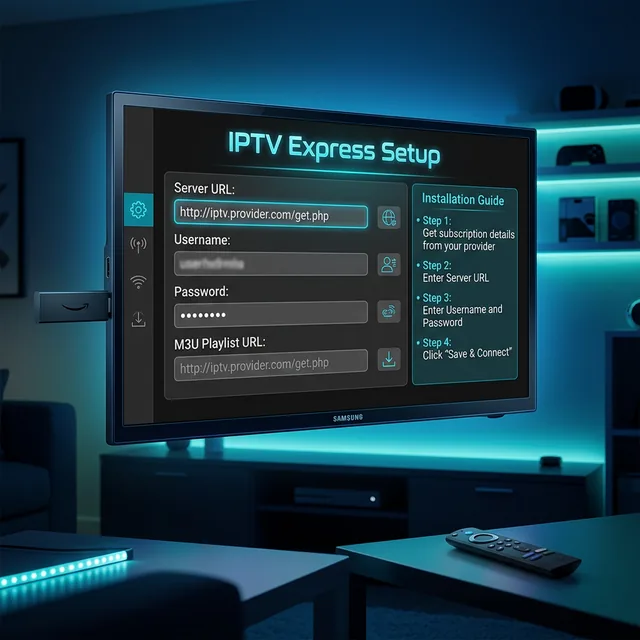
- Your IPTV subscription details: Server URL, username, password, M3U link
- EPG URLs: Any custom EPG sources you've configured
- Screenshots of settings: Take screenshots of important settings screens
- Favorite channel list: Write down your most-watched channels in case you need to set them up again
Cloud Backup Strategy
The best approach combines local and cloud backup:
- Create an in-app backup on your device
- Copy the backup file to Google Drive, Dropbox, or OneDrive
- Also save your login credentials in a password manager
- Test restoring from backup on a different device if possible
Frequently Asked Questions
Does backing up save my subscription?
The backup saves your login details. If your subscription is still active, you can restore it. If it expired, you'll need to renew.
Can I restore a backup from a different IPTV app?
Generally no. Backups are app-specific. But your login credentials work across all apps.
How often should I backup?
Backup after making any significant changes to your setup - new favorites, channel organization, or settings changes.
Where should I store my backup files?
Cloud storage (Google Drive, Dropbox) is safest. Also keep a copy on a USB drive.
Does TiviMate Premium backup include everything?
Yes, TiviMate Premium backup includes playlists, EPG, settings, favorites, and custom groups.