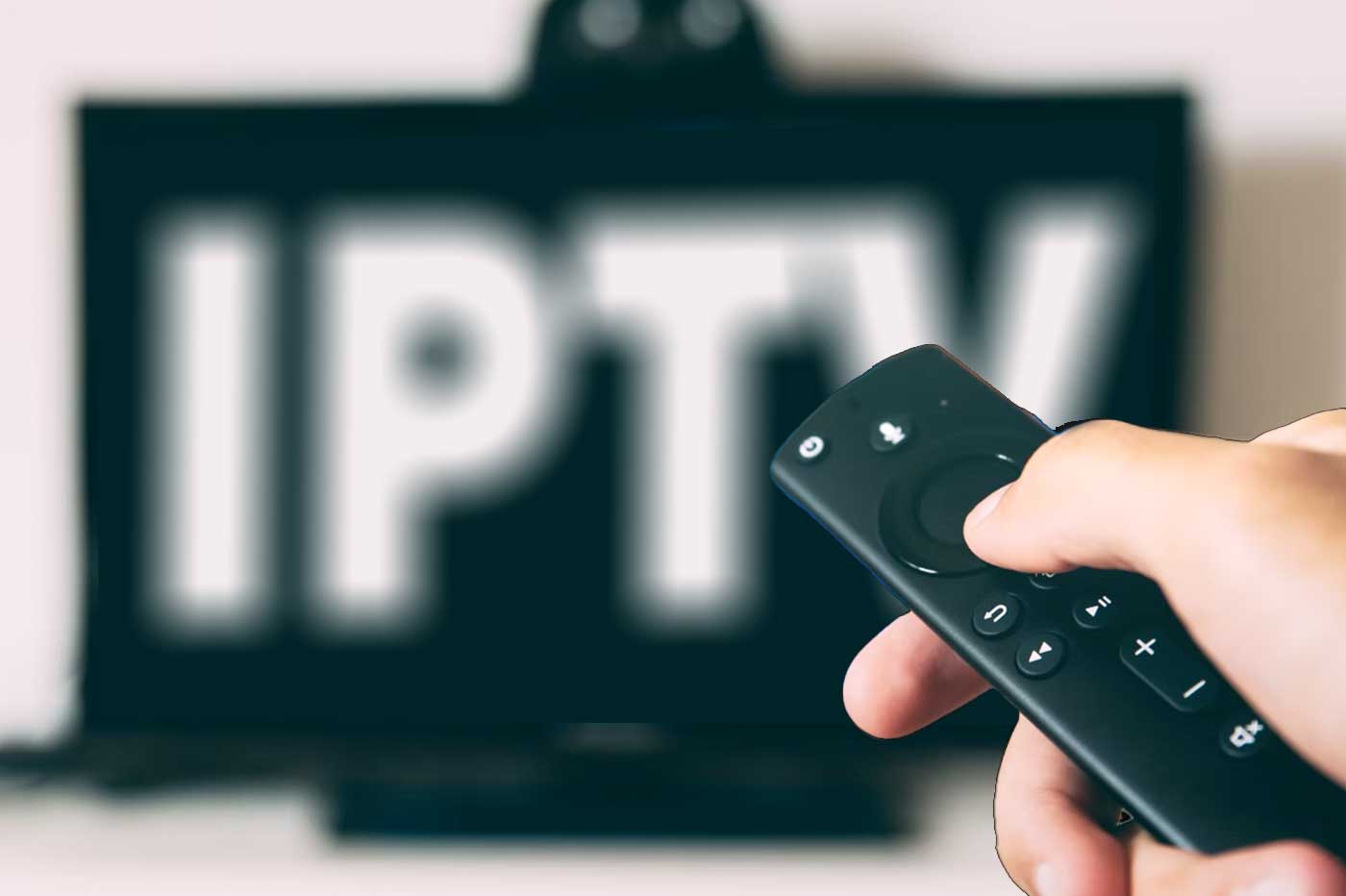
Upgrade Your Firestick Remote for Better IPTV Control
If you spend a lot of time navigating through IPTV channels on your Firestick, you already know the basic remote can feel limiting. The stock Firestick remote works fine for casual Netflix browsing, but when you are jumping between hundreds of live channels, adjusting EPG views, and switching settings, you need better control. Upgrading your Firestick remote for better IPTV use can dramatically improve your streaming experience.
The standard Firestick remote has a directional pad, a few buttons, and voice control through Alexa. It gets the job done, but IPTV apps like TiviMate and IPTV Smarters have features that are painful to navigate with just a D-pad.
Why the Stock Remote Falls Short for IPTV
IPTV apps typically have complex menus with multiple layers. You need to navigate channel groups, browse the EPG, adjust player settings, and manage playlists. The basic directional pad requires a lot of clicks to get anywhere, and there is no mouse mode for apps that do not fully support D-pad navigation.
Many IPTV apps also have features that work best with a mouse or touch input. TiviMate EPG mapping tool, for example, is much easier to use with a pointer than with directional buttons.
Best Remote Upgrades for IPTV Users
The Amazon Fire TV Remote Pro is the most straightforward upgrade. It adds dedicated buttons for quick access, a built-in locator feature, and improved build quality. While it does not add mouse functionality, the better build and shortcuts make IPTV navigation more comfortable.
For serious IPTV users, a Bluetooth mouse or air mouse is the real game-changer. The Fire TV supports Bluetooth mice natively. Pair a compact wireless mouse and suddenly every IPTV app becomes fully navigable. The iPazzPort air mouse is popular among IPTV enthusiasts because it combines a compact form factor with precise pointer control.
Air mice combine a traditional remote layout with motion-controlled pointer functionality. You wave the remote like a wand and the cursor follows your movements on screen. This is especially useful for apps that do not support D-pad navigation well.
Programming Remote Shortcuts for IPTV
If you stick with the standard remote, you can make it work better by customizing the shortcut buttons. Press and hold the Home button to access quick settings, where you can rearrange which apps appear first in your recent apps list. Pin your IPTV app to the top so it is always one click away.
You can also use Alexa voice commands to launch your IPTV app directly. Say Alexa, open TiviMate and the app launches without navigating through menus. Setting up a routine in the Alexa app can take this further by launching the app and performing additional actions with a single command.
Setting Up a Bluetooth Mouse on Firestick
Go to Settings, then Controllers and Bluetooth Devices, then Other Bluetooth Devices. Put your mouse in pairing mode and select it when it appears. Once connected, a cursor appears on screen that you control by moving the mouse. Right-click maps to the Back button and left-click to Select.
Frequently Asked Questions
Will any Bluetooth mouse work with Firestick?
Most standard Bluetooth mice are compatible. Basic two-button mice work best because extra features like scroll wheels may not function properly.
Does an air mouse work better than a regular mouse for IPTV?
Air mice are more convenient because they combine remote and mouse functions in one device. You do not need a flat surface, which is ideal for living room setups.
Can I control my IPTV app with Alexa voice commands?
Basic commands like launching the app work well. For channel navigation, some IPTV apps support voice commands better than others.
Ready for a better IPTV setup? Get IPTV Service - .58/month