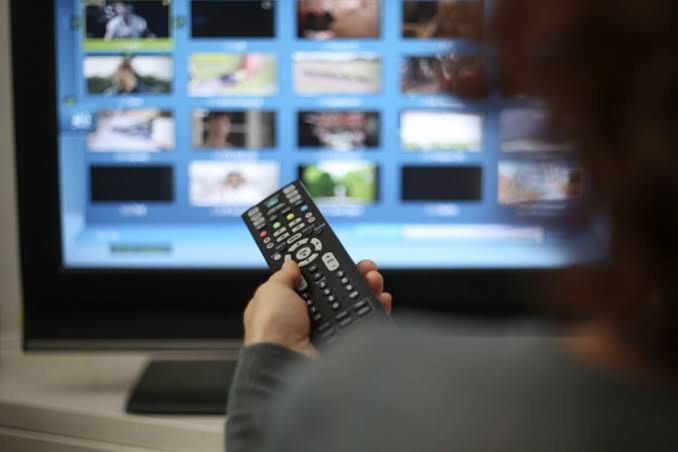
Watching IPTV on a Laptop While Traveling
Traveling does not mean you have to miss your favorite live TV. If you have a laptop and a solid internet connection, you can stream IPTV from literally anywhere in the world. Whether you are on a business trip, staying at a hotel, or visiting family abroad, your laptop becomes a portable television.
Unlike a Firestick or Android TV box, your laptop does not need sideloading or special tricks. Most IPTV player apps run natively on Windows and Mac. All you need is your subscription details, a decent Wi-Fi or mobile hotspot, and about five minutes of setup time.
What You Need Before You Start
Before you begin watching IPTV on your laptop during travel, make sure you have these essentials ready:
- An active IPTV subscription with your login credentials (username, password, and server URL)
- A stable internet connection with at least 10 Mbps for HD streaming
- An IPTV player app installed on your laptop
- A VPN (optional but recommended) especially if you are traveling internationally
The VPN is important because some IPTV servers restrict access based on your location. A good VPN masks your real IP address and makes it look like you are streaming from your home country. This is especially useful when hotel Wi-Fi networks block certain streaming traffic.
Best IPTV Players for Windows Laptops
Windows users have several excellent options for IPTV playback:
- IPTV Smarters Pro - Available as a Windows app from the Microsoft Store. Clean interface, supports Xtream Codes and M3U playlists. Great for beginners.
- VLC Media Player - Free, open source, and handles M3U playlists perfectly. No frills but extremely reliable.
- TiviMate - Recently added Windows support. Offers premium features like recording and multi-playlist support.
- PotPlayer - Lightweight alternative with excellent codec support and low resource usage.
For most travelers, IPTV Smarters Pro is the easiest choice. It looks and works almost identical to the mobile version, so you will feel right at home.
Best IPTV Players for Mac Laptops
Mac users have solid options too:
- IPTV Smarters Pro for Mac - Native macOS app with clean interface
- VLC Media Player - Handles M3U playlists without any issues
- GSE Smart IPTV - Available from the Mac App Store with Chromecast and AirPlay support
- Layers Player - Lightweight Mac-native player designed specifically for IPTV streams
Step-by-Step Setup Guide
Here is how to set up IPTV on your laptop in under five minutes:
Step 1: Download and install your preferred IPTV player. For this guide, we will use IPTV Smarters Pro.
Step 2: Open the app and select your playlist type. If your provider gave you a username and password, choose Xtream Codes API. If you have an M3U URL, choose M3U URL.
Step 3: Enter your subscription details. For Xtream Codes, you need three fields: Server URL, Username, and Password.
Step 4: Give your playlist a name like My Travel IPTV and tap Add User. The app will load your channels.
Step 5: Once loaded, browse by category, search for channels, or check the EPG for what is on now.
Hotel Wi-Fi Tips for IPTV Streaming
Hotel Wi-Fi can be tricky for IPTV. Here are practical tips:
- Use a VPN - Hotel networks often throttle video streaming. A VPN encrypts your traffic.
- Lower the stream quality - Switch to 720p or 480p if the Wi-Fi is slow. Buffer-free beats constant buffering.
- Use an Ethernet cable if possible - Many hotel rooms have a wired port behind the desk that is faster than Wi-Fi.
- Connect to your phone hotspot - If hotel Wi-Fi fails, a 4G or 5G mobile hotspot is often more reliable.
Using a VPN for IPTV While Traveling
A VPN is your best friend when streaming IPTV abroad:
- Bypass geo-restrictions - Some channels may only be available in certain countries. A VPN lets you appear as if you are back home.
- Prevent ISP throttling - Networks often slow down video streaming. A VPN hides this traffic.
- Protect your privacy - Public Wi-Fi networks are not secure. A VPN encrypts everything you do online.
The best VPN protocols for streaming are WireGuard and Lightway. They offer the fastest speeds while maintaining strong encryption.
Battery and Performance Tips
- Lower your screen brightness - The display is the biggest battery drain. Lowering from 100% to 60% adds an hour of battery life.
- Close unnecessary apps - Browsers and background processes compete for CPU and RAM.
- Use headphones instead of speakers - Built-in speakers use more power.
- Plug in whenever possible - If near an outlet, always plug in.
Frequently Asked Questions
Can I watch IPTV on a laptop without an app?
Yes, you can use VLC Media Player or a web browser. However, dedicated IPTV apps like Smarters Pro give you a much better experience with EPG and channel grouping.
Do I need a powerful laptop for IPTV?
Not at all. IPTV requires minimal processing power. Even a five-year-old laptop with 4GB of RAM can handle 1080p streaming.
What internet speed do I need?
For smooth HD streaming, you need at least 10 Mbps. For 4K, aim for 25 Mbps or higher.
Can I watch IPTV on a plane?
Only if the plane has Wi-Fi, and even then speed may be insufficient. Download VOD content before your flight for offline viewing.
Pros and Cons
| Pros | Cons |
|---|---|
| Large screen compared to phone | Battery drain during long sessions |
| Full keyboard and mouse navigation | Less portable than a phone |
| Easy setup with Windows/Mac apps | Hotel Wi-Fi may be too slow |
| No sideloading required | Laptop fans may get loud |
IPTV Pricing: Your Portable TV for Less
At just $4.58 per month or $55 per year, you get access to thousands of channels on every device including your laptop. That is less than a single meal out for unlimited live TV for an entire month.
Get IPTV on WhatsApp