Fix IPTV Connection Timed Out Errors
A connection timed out error on your IPTV means your device tried to connect to the IPTV server but did not get a response in time. This error appears as Connection Timed Out, Server Not Responding, or Connection Refused. Here is how to fix it.
Quick Fixes to Try First
Fix 1: Check Your Internet
Open a web browser and visit any website. If pages load slowly or not at all, the problem is your internet connection, not the IPTV server. Restart your router and modem.
Fix 2: Restart Your IPTV App
Force close the IPTV app completely and reopen it. Sometimes the app gets stuck in a bad state.
Fix 3: Try a Different Server
Some IPTV providers have multiple servers. If your main server is down, try switching to an alternate server in your IPTV app settings.
Fix #1: Check DNS Settings
Wrong DNS settings can prevent your device from finding the IPTV server.
Change to public DNS:
- Google DNS: 8.8.8.8 and 8.8.4.4
- Cloudflare DNS: 1.1.1.1 and 1.0.0.1
- OpenDNS: 208.67.222.222 and 208.67.220.220
On Firestick: Settings > Network > Select your network > IP Settings > DNS Settings > Enter manually
Fix #2: Disable VPN or Change Server
Some VPN servers are blocked by IPTV providers. If you are using a VPN:
- Disconnect the VPN and try connecting directly
- Try a different VPN server location
- Use a dedicated IP address from your VPN provider
Fix #3: Check Your Subscription Status
Your subscription may have expired. Log into your provider's website or WhatsApp them to verify your account is active. An expired subscription often shows as a connection timeout rather than an explicit message.
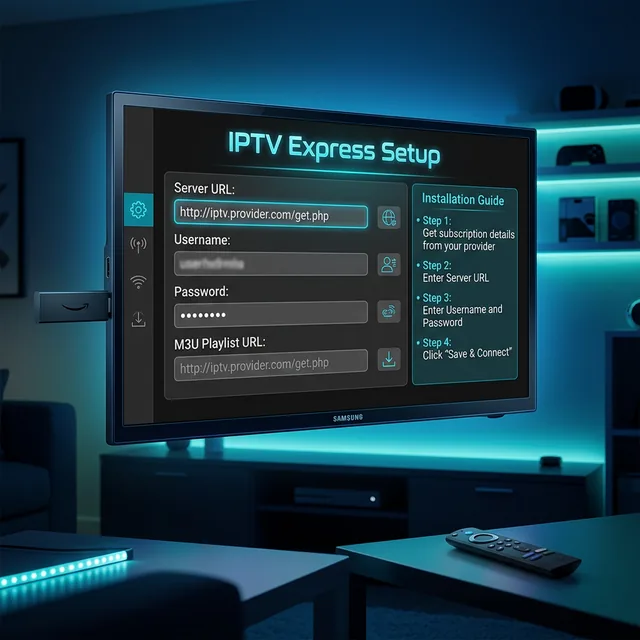
Fix #4: Update Server URL
IPTV providers occasionally change their server addresses. If your server URL is outdated, you will get timeout errors.
The fix: Contact your IPTV provider to get the current server URL. Update it in your IPTV app settings.
Fix #5: Check Firewall and Antivirus
Some firewalls and antivirus apps block streaming connections:
- Temporarily disable your antivirus/firewall and test the IPTV connection
- Add your IPTV app to the whitelist/exceptions list
- Windows Firewall may be blocking the connection. Add an exception for your IPTV app.
Fix #6: Flush DNS Cache
On Windows: Open Command Prompt as admin and type ipconfig /flushdns
On Android: Install a DNS flusher app from the Play Store
On Mac: Open Terminal and type sudo dscacheutil -flushcache
Fix #7: Port Blocking by ISP
Your ISP may block the specific port that your IPTV server uses.
The fix: A VPN bypasses port blocking by encrypting your traffic. Connect to a VPN before opening your IPTV app.
Frequently Asked Questions
Is the timeout error my fault or the server's?
It could be either. Check your internet first. If your internet works fine but IPTV still times out, it may be a server issue. Contact your provider.
Does changing DNS really help?
Yes. Slow or incorrect DNS can prevent your device from resolving the server address. Switching to Google or Cloudflare DNS is a quick fix that works often.
Why does it timeout only during certain hours?
Peak hours (7-11 PM) cause server congestion. Your provider's servers may be overloaded. A VPN can sometimes help by routing through less congested paths.