Resolving Server Timeout Errors in IPTV Smarters
You open IPTV Smarters, try to load your channels, and instead of your familiar channel list, you get a frustrating "Server Timeout" or "Connection Timed Out" error message. When IPTV Smarters server timeout error hits, it can feel like your entire subscription stopped working. But in most cases, the fix is straightforward.
Server timeout errors mean the app is trying to connect to your IPTV provider's server but isn't getting a response within the expected time. This doesn't necessarily mean your subscription expired - it's usually a network or configuration issue.
Common Causes of Server Timeout
- Server overload: The IPTV server is experiencing high traffic
- Network issues: Your internet connection is unstable or slow
- Wrong credentials: Incorrect server URL, username, or password
- DNS problems: Your DNS can't resolve the server address
- Firewall blocking: Your network firewall is blocking the connection
- App cache: Corrupted cache data in the IPTV Smarters app
Fix 1: Check Your Internet Connection
This is the first thing to verify:
- Open a web browser on the same device and try loading a website
- Run a speed test - you need at least 10 Mbps for IPTV
- Try loading the IPTV server URL directly in a browser (add http:// before the server address)
- If the browser can't load pages, fix your internet first
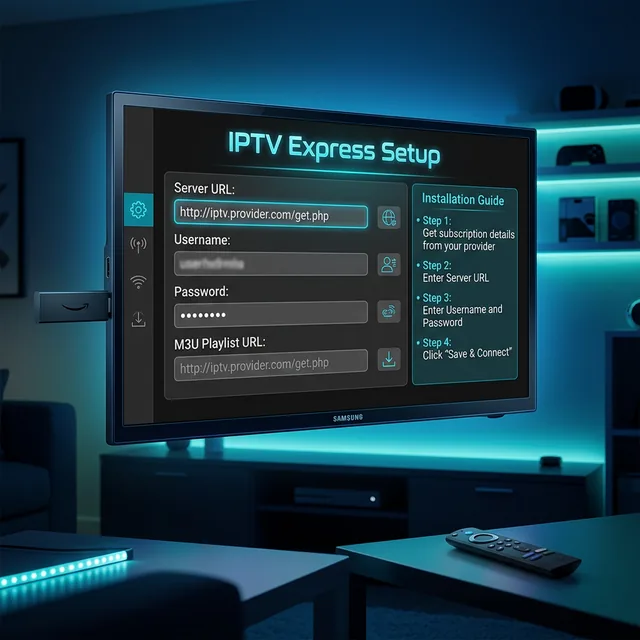
Fix 2: Verify Your Login Credentials
Double-check that your details are correct:
- Server URL: Must include http:// or https:// prefix
- Username: Check for typos, spaces, or case sensitivity
- Password: Verify each character is correct
- If you recently renewed, your credentials may have changed - check with your provider
Fix 3: Change DNS Settings
DNS problems are a common cause of timeout errors. Try changing your DNS to Google or Cloudflare:
| DNS Provider | Primary | Secondary |
|---|---|---|
| 8.8.8.8 | 8.8.4.4 | |
| Cloudflare | 1.1.1.1 | 1.0.0.1 |
| OpenDNS | 208.67.222.222 | 208.67.220.220 |
On Android/Firestick: Settings > Network > [Your Network] > Advanced > IP Settings > change to Manual and enter the DNS addresses.
Need Reliable IPTV Access?
Stable servers and fast connections. Just $4.58/month or $55/year.
Fix 4: Clear IPTV Smarters Cache
- Go to Settings > Apps > IPTV Smarters
- Select "Clear Cache"
- Force stop the app
- Reopen IPTV Smarters and try connecting again
If clearing cache doesn't work, try "Clear Data" (note: you'll need to re-enter your login credentials).
Fix 5: Try a Different Server Port
Some IPTV providers use different ports. If port 80 or 8080 is timing out:
- Try adding :8080 or :25461 to the end of your server URL
- Check with your provider for the correct port number
- Example: http://server.example.com:8080 instead of http://server.example.com
Fix 6: Restart Everything
Sometimes the simplest fix works:
- Force stop IPTV Smarters
- Restart your streaming device (unplug for 30 seconds)
- Restart your router/modem (unplug for 60 seconds)
- Wait for internet to reconnect fully
- Open IPTV Smarters and try again
Frequently Asked Questions
Does server timeout mean my subscription expired?
Not necessarily. It's usually a network or connection issue. Check with your provider if timeouts persist.
Why does timeout happen more at certain times?
Server overload during peak hours (evenings, weekends) can cause timeouts.
Will a VPN fix server timeout errors?
It can, especially if your ISP is blocking the connection. Try connecting through a VPN.
Should I switch from IPTV Smarters to TiviMate?
TiviMate sometimes handles connections differently and may resolve timeout issues.
How do I contact my provider about server issues?
Reach out via WhatsApp or their support channel. Provide your username and the exact error message.