Formuler Z Box: Your IPTV Setup Companion
The Formuler Z series brings dedicated IPTV hardware to a wider audience. If you just got a Formuler Z box and need help getting started, this Formuler Z Box setup guide walks you through unboxing, initial configuration, and getting your IPTV running smoothly.
Formuler boxes use a custom Android-based OS designed specifically for IPTV, and the setup process is more straightforward than you might expect.
What Is in the Box
Your Formuler Z box package includes: the Formuler Z box itself, a remote control, an HDMI cable, a power adapter, and a quick start guide. The remote deserves special mention because it is designed specifically for IPTV navigation with dedicated buttons for common functions.
Before you start, make sure you have an ethernet cable ready. While Formuler boxes support Wi-Fi, an ethernet connection provides the most stable IPTV experience.
Step 1: Physical Setup
Connect the HDMI cable from the Formuler box to your TV. Plug in the ethernet cable for the most reliable connection. Connect the power adapter and turn on the box using the power button or remote.
The Formuler Z box boots directly into the MyTVOnline2 app, which is the built-in IPTV interface. Unlike other Android devices that boot to a home screen with apps, the Formuler focuses entirely on the IPTV experience.
Step 2: Network Configuration
On first boot, the Formuler will ask you to configure your network. If you connected via ethernet, this happens automatically. For Wi-Fi, select your network and enter the password.
Navigate to Settings and then Network to verify your connection. Run a speed test if available to ensure your connection meets IPTV requirements of at least 10 Mbps for HD streaming.
Step 3: Adding Your IPTV Subscription
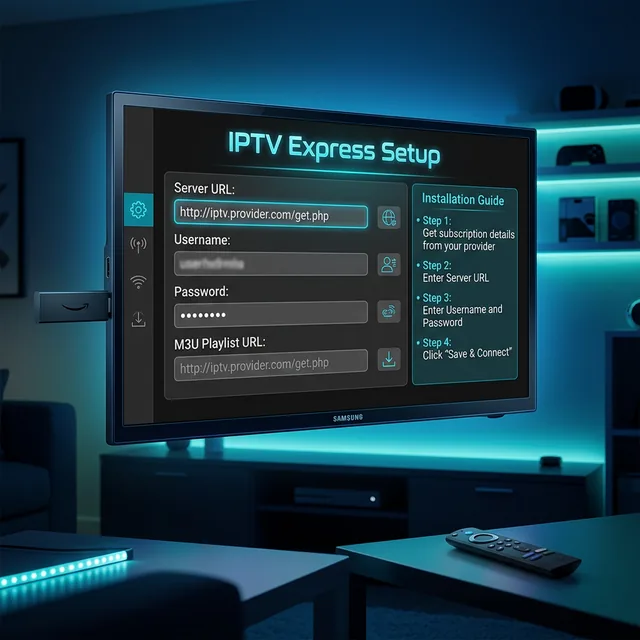
Go to the MyTVOnline2 main menu. Navigate to Sources and then Add New. You have several options for connecting to your IPTV provider:
Portal (MAC-based): Select Portal and enter the portal URL provided by your IPTV service. This is the most common method for Formuler boxes. Enter the URL exactly as provided, including any port numbers.
M3U URL: Select M3U and paste the playlist URL from your provider. This works with any IPTV service that provides M3U links.
Xtream Codes: Some Formuler models support Xtream Codes. Select this option and enter the server URL, username, and password.
Formuler Z Setup Quick Reference
| Step | Menu Path | Action |
|---|---|---|
| Network | Settings > Network | Verify connection |
| Add Source | MyTVOnline2 > Sources | Enter provider details |
| EPG | Settings > EPG | Configure program guide |
| Favorites | Long-press channel | Add to favorites |
| Aspect Ratio | Settings > Video | Match your TV |
| Time Zone | Settings > System | Set correctly |
Step 4: Configure EPG and Time Zone
After adding your source, configure the EPG. Go to Settings and then EPG and make sure the EPG source is correctly set. If your provider includes a separate EPG URL, enter it here.
Set the time zone to your local time zone or home country time zone if watching from abroad. This ensures the program guide shows correct times for your viewing schedule.
Step 5: Optimize Remote Control
The Formuler remote is highly customizable. Long-press the colored buttons to assign favorite functions. The OK button opens channel info. The menu button accesses the channel list. Learn these shortcuts to navigate quickly during live events.
You can also program the remote to control your TV power and volume through the Formuler setup wizard. This eliminates the need for multiple remotes on your coffee table.
Customizing MyTVOnline2
Under Settings in MyTVOnline2, you can customize the interface appearance, change the channel list layout, and adjust playback settings. Enable channel logos for a more visual browsing experience. Set the default stream quality to match your internet speed.
Enable the channel preview feature to see a live preview as you scroll through the channel list. This is one of MyTVOnline2 best features and makes channel browsing much more engaging.
Frequently Asked Questions
Which Formuler Z model should I buy?
The Formuler Z11 is the latest and best model. It has 2GB RAM, Wi-Fi 6, and the best MyTVOnline2 performance. The older Z7 and Z8 are still capable but have less RAM and older Wi-Fi standards.
Can I use Formuler with any IPTV provider?
Yes. Formuler boxes support portal connections, M3U playlists, and Xtream Codes. Any IPTV provider that offers one of these connection methods works with Formuler.
Does Formuler support Netflix?
Formuler boxes do not have Netflix HD certification. For Netflix, use a separate device like Firestick or Apple TV. Formuler is designed specifically for IPTV.
How do I update MyTVOnline2?
Updates are pushed through the Formuler system. Go to Settings and then System and check for updates. Firmware updates improve MyTVOnline2 performance and add new features.